
I have a theory about keyboards that I’ve been waiting for the right moment to say out loud.
Your keyboard is the single interface through which everything you produce on a computer passes. Every email, every document, every search query, every line of code. If you work at a desk for eight hours a day, your fingers are touching this object for somewhere between four and six of those hours. And yet most people — people who will spend $400 on AirPods and $1,200 on a phone — are using a keyboard that came free with a desktop setup in 2019 and sounds like someone aggressively typing on bubble wrap.
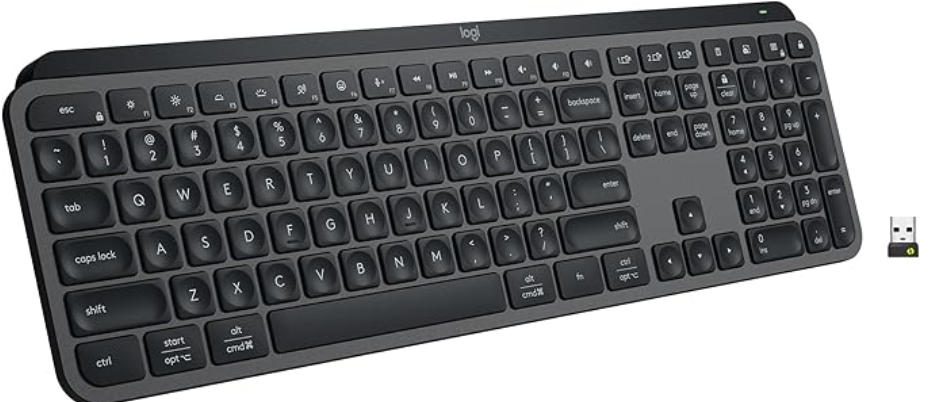
I was one of these people until about three years ago. The keyboard that changed my thinking was a Logitech MX Keys. The one I use now is its successor, the MX Keys S, and it’s about $109, and the first time I say that price to someone they make a face. Then I make them type a paragraph on it. The face changes.
This is what I’m going to try to explain. Buy Logitech MX Keys S from Amazon https://amzn.to/4wOJnuY
What the MX Keys S actually is
The MX Keys S is a full-size wireless keyboard with low-profile scissor switches — the same mechanism used in good laptop keyboards, not the tall mechanical switches you find in gaming keyboards. It connects to up to three devices via Bluetooth or Logi Bolt USB dongle, switches between them with dedicated keys labeled F1, F2, F3, and does so in about half a second.
The keycaps are spherically dished — each key has a slight concave curve that cups your fingertip. This sounds like a minor design detail. In practice, after you’ve used a flat-keycap keyboard for years, the first time you type on spherical keycaps you notice that your fingers are landing on them more accurately. It’s a small ergonomic assist that adds up over the course of a day and adds up considerably more over the course of a year.
The smart backlight uses a proximity sensor to turn on when your hands approach and an ambient light sensor to adjust brightness automatically. In a dim room it brightens; in daylight it dims. Battery life with backlight on is 10 days. With backlight off, five months. This gap is dramatic and worth understanding — the backlight is not a passive feature. If you keep it on all day, you’re charging this keyboard every week and a half. If you turn it off entirely, you’re charging it twice a year.
It charges via USB-C, takes about three hours from empty, and shows remaining battery in the Logi Options+ app. Weight is 810 grams — substantial, the kind of weight that doesn’t skid around on your desk when you type aggressively.
Price: $109.99, which goes on sale semi-regularly for $79-89.
The things that are genuinely good
The typing experience is the reason anyone buys this keyboard and it delivers. The key travel is 1.8mm — longer than a MacBook but shorter than a mechanical keyboard — with a tactile bump at the actuation point that gives you clear feedback without requiring forceful keystrokes. I type reasonably fast and I can sustain a long writing session on this keyboard without the finger fatigue I get from the higher-actuation-force mechanical boards I’ve tried.
The sound is quiet. Meaningfully, noticeably quiet compared to membrane keyboards and dramatically quieter than mechanical boards. I’ve taken calls with this keyboard in frame and nobody has complained, which was not true of the keyboard I used before it.
The multi-device switching is genuinely useful if you have multiple computers, which more people do now than five years ago — a work laptop, a personal laptop, maybe an iPad. I switch between a Mac and a PC during my day. I press F1, then F2, and the keyboard is now talking to the other machine, with the key labels correctly mapped for each OS. The MX Keys S ships with dual-label keys — macOS labels on the top of the keycap, Windows labels on the front face. This is a detail that makes the keyboard feel like it was designed by someone who actually uses computers in a mixed environment rather than someone who decided keyboards should declare an OS loyalty.
The Logi Options+ software is the best keyboard customization software I’ve used at this price tier. You can remap any key, create application-specific shortcuts so your function keys do different things in Photoshop versus Figma versus your browser, and set up Smart Actions that trigger sequences of commands from a single keystroke. I’ve mapped one key to simultaneously open my notes app and mute all notifications. It sounds minor. I use it twenty times a day.
The things that are genuinely annoying
The backlight proximity sensor works about 85% of the time in my experience. The other 15%, you sit down at your desk, hover your hands, and nothing happens. You tap a key to wake it up manually, and it activates. This defeats approximately 40% of the smart backlight’s value proposition. The r/logitech community has documented this issue thoroughly; Logi Options+ software updates have improved but not solved it. If a proximity-sensing backlight that occasionally requires a manual keypress is going to bother you, this information is worth having.
The palm rest is sold separately for $19.99. The keyboard has a slightly elevated rear angle that angles your wrists upward more than some people prefer for long sessions, and Logitech’s own ergonomic recommendation is to use a palm rest. Not including one in the box with a $109 keyboard is a decision I find baffling, and several reviewers who otherwise liked the keyboard called it out specifically. You can buy a third-party foam palm rest for $8-12 that works equally well, but the omission still stings.
No dongle storage. The Logi Bolt USB receiver needs somewhere to live, and it doesn’t live inside the keyboard the way some competitor dongles do. It’s about the size of a fingernail and will either be permanently plugged into your computer or permanently in danger of being lost. I keep mine in a small zippered pouch with my other USB adapters. This is a reasonable solution and also a sentence I hate having to say about a $109 keyboard.
The only backlight color is white. If you want RGB — multiple colors per key, the kind of thing gaming keyboards offer — this is not your keyboard. The MX Keys S is an office keyboard with office keyboard aesthetics. Some people find the white backlight elegant. Some people find it boring. I find it adequate and have made my peace with it.
How it compares to the actual alternatives
| Logitech MX Keys S | Apple Magic Keyboard | Keychron K8 Pro | Microsoft Ergonomic | |
|---|---|---|---|---|
| Price | $109 | $99–$129 | $99–$119 | $79 |
| Switch type | Scissor (low-profile) | Scissor (low-profile) | Mechanical (hot-swap) | Membrane |
| Multi-device pairing | 3 devices | 1 (Mac/iPad via BT) | 3 devices | 1 device |
| OS compatibility | Win/Mac/Linux/iOS/Android | Apple only (meaningful) | Win/Mac | Windows primary |
| Backlight | White, smart sensor | White (Touch ID models) | RGB, per-key | None |
| Battery life (BL on) | 10 days | N/A (wired option) | 35–45 hrs | AAA batteries |
| Wrist rest included | No ($20 separately) | No | No | Yes |
| Best for | Multi-device, mixed OS | Apple-only households | Mechanical feel lovers | Ergonomics focus |
| Dongle storage | No | N/A | No | N/A |
The Apple Magic Keyboard is the competitor I get asked about most often. For iPhone and Mac users who never touch a Windows machine and don’t care about multi-device switching, the Magic Keyboard is excellent — the keyfeel is clean if slightly shallow, it pairs instantly with Apple devices, the Touch ID integration works beautifully for authentication. What it can’t do: work meaningfully with non-Apple devices, switch between three devices, customize keys via software with anything close to Logi Options+’s depth. If your world is 100% Apple, the Magic Keyboard is simpler. If it’s not, the MX Keys S is significantly more versatile.
The Keychron K8 Pro is for people who specifically want mechanical switches — the higher travel, more pronounced tactile feedback, and customizability of a hot-swappable mechanical board. The K8 Pro supports Mac and Windows layouts, connects via Bluetooth or USB-C, and the hot-swap sockets let you swap in different switch types without soldering. If you’ve tried mechanical switches and you like them, Keychron is the better buy at a similar price. If you’re not sure whether you like mechanical keyboards, the answer is to go to a store and type on one before committing, because opinions diverge sharply and the difference from scissor switches is not subtle.
The Microsoft Ergonomic Keyboard at $79 is designed entirely around wrist position — a split layout, cushioned palm rest included, significantly angled to reduce ulnar deviation. If you have wrist pain or type for extremely long sessions, this is the category to take seriously. The keyfeel is below MX Keys S, the multi-device support is limited, but it includes the wrist rest that Logitech charges you extra for and addresses a real ergonomic need. For people with RSI history or those who’ve noticed wrist discomfort: look at this first.
Who should buy the MX Keys S
The person the MX Keys S is designed for: someone who works at a desk for most of the day, types a lot, uses two or three different computers or devices, and is not deep into the mechanical keyboard hobby. If your primary complaints about your current keyboard are that it feels mushy, it’s loud, or you’re constantly unplugging and re-plugging to switch devices, the MX Keys S solves all three.
Who should look elsewhere: people who specifically want mechanical switches (Keychron), people with wrist problems (Microsoft Ergonomic or a split keyboard), people who only use Apple devices and want frictionless integration (Magic Keyboard), and people who only need a keyboard for occasional use and won’t notice the difference between this and a $30 option.
One practical note: if you’re buying the MX Keys S specifically to pair with the MX Master 3S mouse, you can buy both through a Logi Bolt dongle — one dongle handles both devices, saving a USB port. This pairing is extremely common and extremely good, and the unified dongle management is a legitimate feature of the ecosystem.
My keyboard is within arm’s reach every day and I notice it about once a week, when someone asks what I’m using or when I sit down at a different keyboard for a few minutes and immediately want to go back. That’s the experience a good keyboard produces: the hardware disappears, the typing feels effortless, and you only become aware of it by contrast.
The MX Keys S is $109. The face you’ll make at that number and the face you’ll make after typing on it for a week are genuinely different faces. I cannot prove this to you in a review. I can only tell you that after three years with the MX line, I have not once considered going back to something cheaper.
Whether that’s the keyboard making me better at my job or just making my job feel better is a distinction I’ve stopped trying to draw.